Your front desk person needs to see the calendar. Your senior stylist needs to manage her own schedule. Neither of them needs access to revenue reports or the ability to edit your service menu.
Most salon software handles this with broad roles: owner, manager, staff. You pick one and live with whatever permissions that role includes. If “manager” can see revenue but your manager shouldn’t, you’re stuck.
A GlossGenius guide on multi-user salon software found that personalized permissions are one of the top features salon owners look for when evaluating booking platforms. The reason is simple: broad roles force you to choose between giving too much access or too little.
How salon staff permissions work in Lutily
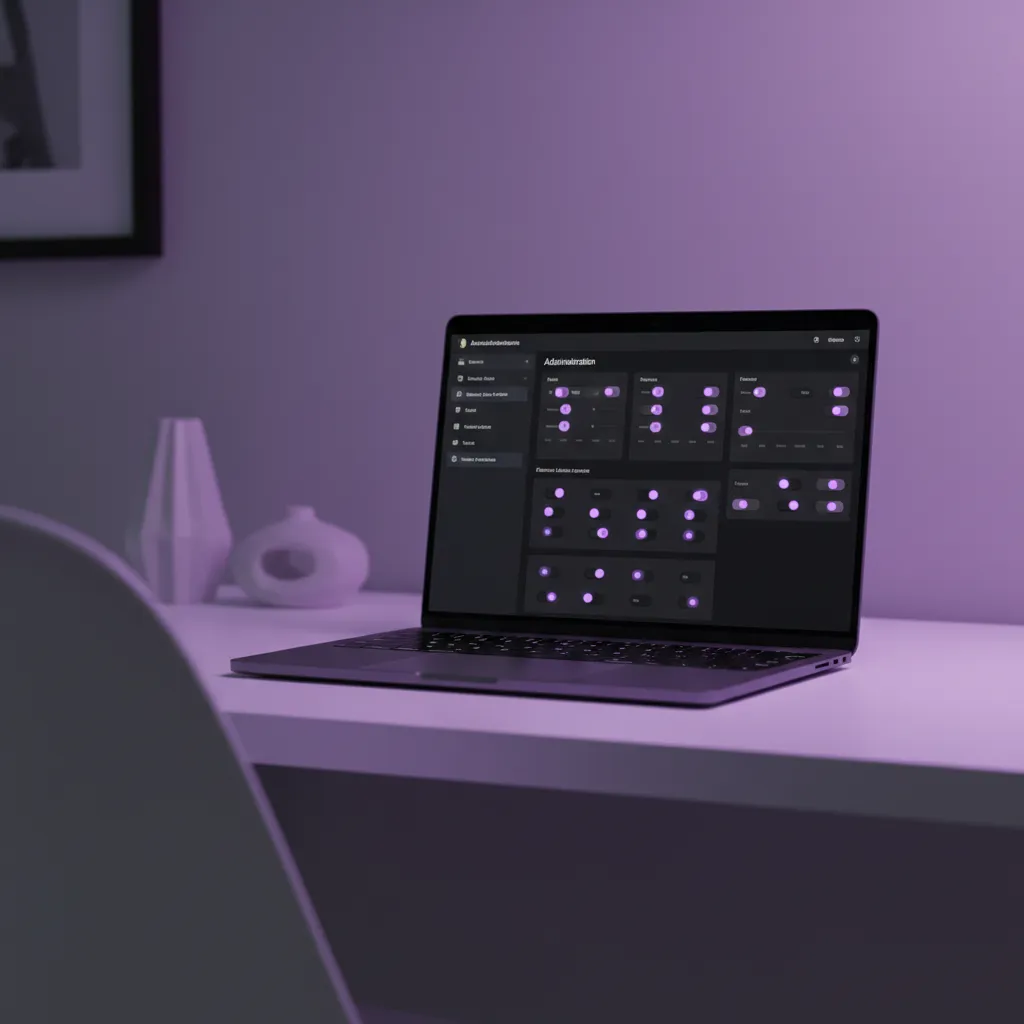
Lutily uses eight individual permission toggles instead of predefined roles. Each staff member gets exactly the access they need.
The permissions:
- View all bookings controls whether a staff member sees the full calendar or only their own appointments.
- Manage bookings lets them create, reschedule, or cancel appointments for any staff member.
- Manage clients gives access to client profiles, contact info, and visit history.
- Manage schedule allows editing working hours, days off, and break times.
- Manage services covers adding, editing, or removing services from the menu.
- Manage staff lets them edit other team members’ profiles.
- View reports unlocks revenue and performance data.
- Manage waitlist gives control over the waitlist queue and notifications.
Every toggle defaults to off. You turn on what each person needs. The owner account always has full access and cannot be restricted.
✅ Start minimal
Give new staff members only “View all bookings” on day one. Add permissions as their role expands. It takes five seconds to flip a toggle later.
Setting up salon team access
The invite flow works through email. You add the staff member’s email to their profile, tap “Invite,” and they receive a link. They tap it, create their login, and land in the app with whatever permissions you’ve set.
Invites expire after seven days. You can resend if they miss it. You can also revoke access instantly if someone leaves. Revoking deletes their admin session on the spot: no waiting for a password reset or hoping they don’t log in again.
Why granular permissions matter for salons
This comes up most often during onboarding a new stylist. You want them booking clients on day one, but you don’t want them editing your service prices or viewing the full revenue dashboard. Toggle-based permissions make that a thirty-second decision instead of a workaround.
It also matters as your team grows. A two-person salon may not think about access control. A five-person team with a receptionist, two stylists, and an apprentice has four different permission profiles. The receptionist manages bookings and clients. The stylists manage their own schedules. The apprentice views the calendar. Predefined roles can’t handle that without compromise.
For the scheduling KPIs that actually matter, only the people who act on that data need to see it. Everyone else just needs a clean calendar view.
What happens after setup
Once permissions are set, staff members see a version of the app tailored to their access. No grayed-out buttons or “contact your admin” messages for features they can’t use. Sections they don’t have access to simply don’t appear. The interface stays clean.
Permissions can be changed at any time from the Team screen. No re-invite needed. The change takes effect immediately.